What you need
- An IPTV subscription from a provider you're entitled to use. The provider sends you either an Xtream Codes login (a server address, a username and a password) or an M3U link (an address that usually ends in .m3u or .m3u8). Some send both.
- An IPTV player app. The iPhone doesn't play IPTV playlists on its own. This guide uses Yagi, which is free for 7 days.
- iOS 26 or iPadOS 26 or later.
If you have a choice, use the Xtream Codes login: it sorts movies and series into their own sections and brings the TV guide. An M3U link brings everything in the playlist, without the sections or the guide.
Step by step
- Find your login. Open the email or account page from your IPTV provider and find the server address, username and password, or the M3U link.
- Install Yagi. Download Yagi IPTV Player from the App Store on your iPhone or iPad and open it.
- Choose how you sign in. On the Add your playlist screen, tap Xtream Codes or M3U Link, to match what your provider gave you.
- Enter the details. For Xtream Codes, type the server address exactly as given, including http:// and the port such as :8080, then the username and password. For M3U, paste the whole link. A name is optional.
- Tap Connect. Yagi loads your playlist and sorts it into Live TV, Movies and TV Shows. A large playlist can take a few seconds.
- Pick a channel. Tap one to play it, and tap the star to keep it in Favourites. Turn the iPhone sideways for the full picture.
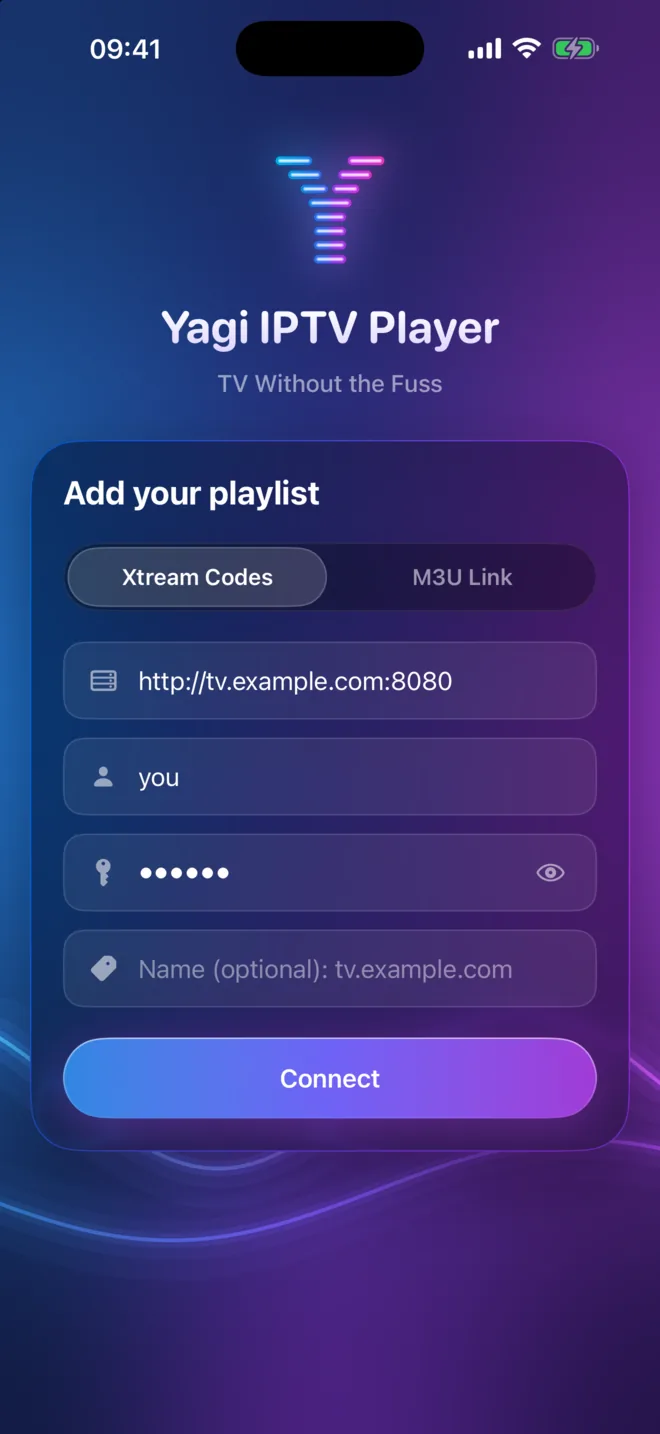
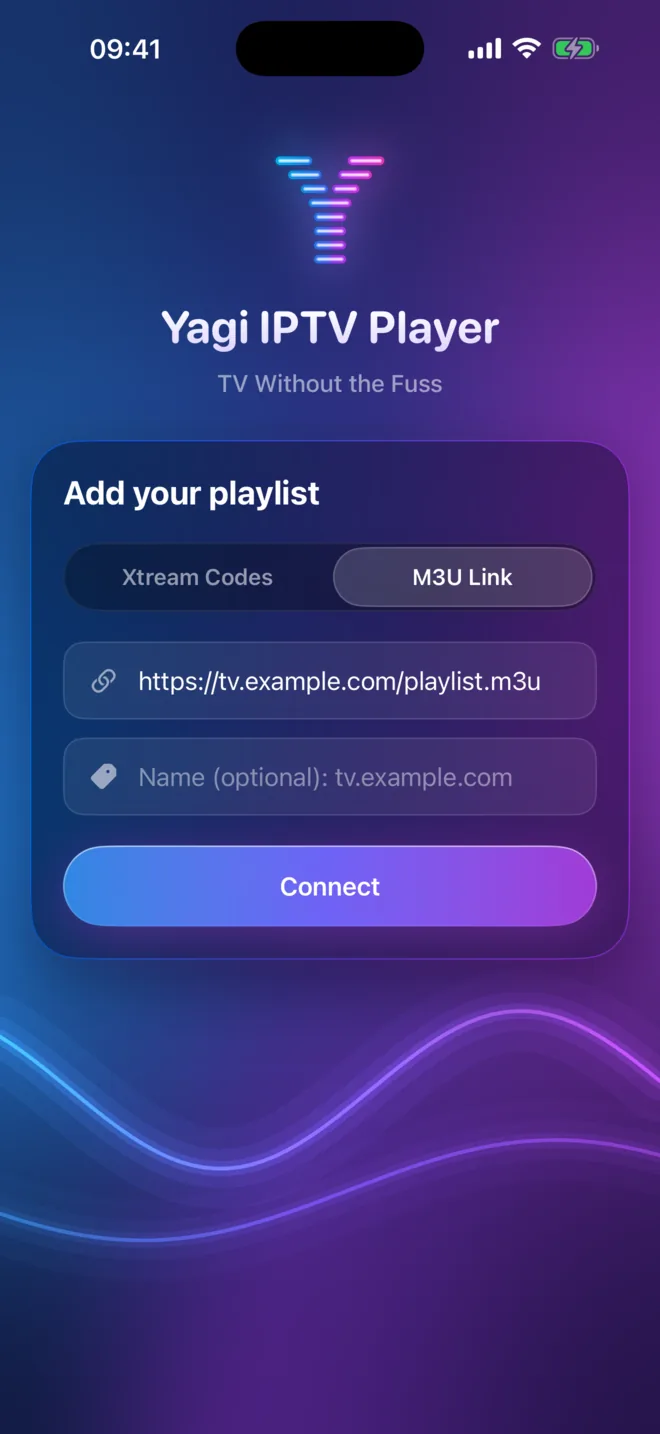
Example values: use the ones from your provider.
After you're in
- The TV guide. With an Xtream Codes login, open a channel's guide to see what's on now and next. Tap the bell beside a programme and allow notifications when asked, so Yagi can remind you before it starts.
- Your other devices. Install Yagi on your iPad or Mac with the same iCloud account and your playlist, favourites and positions are already there.
- The big screen. Tap AirPlay in the player to send the picture to an Apple TV or AirPlay TV.
- Offline. Download movies and episodes your provider offers before a trip, and find them under Available Offline.
