First, the link
An M3U playlist is a list of channels that your IPTV provider shares as an address, such as https://tv.example.com/playlist.m3u. It usually ends in .m3u or .m3u8, and sometimes carries your username and password, like …/get.php?username=…&password=…&type=m3u_plus. Find it in your provider's email or on their account page, and copy the whole thing.
You'll also need an IPTV player: macOS doesn't play IPTV playlists with a guide and channel list on its own. This guide uses Yagi, a native Mac app that's free for 7 days and needs macOS 26 or later.
Step by step
- Install Yagi. Download Yagi IPTV Player from the Mac App Store and open it.
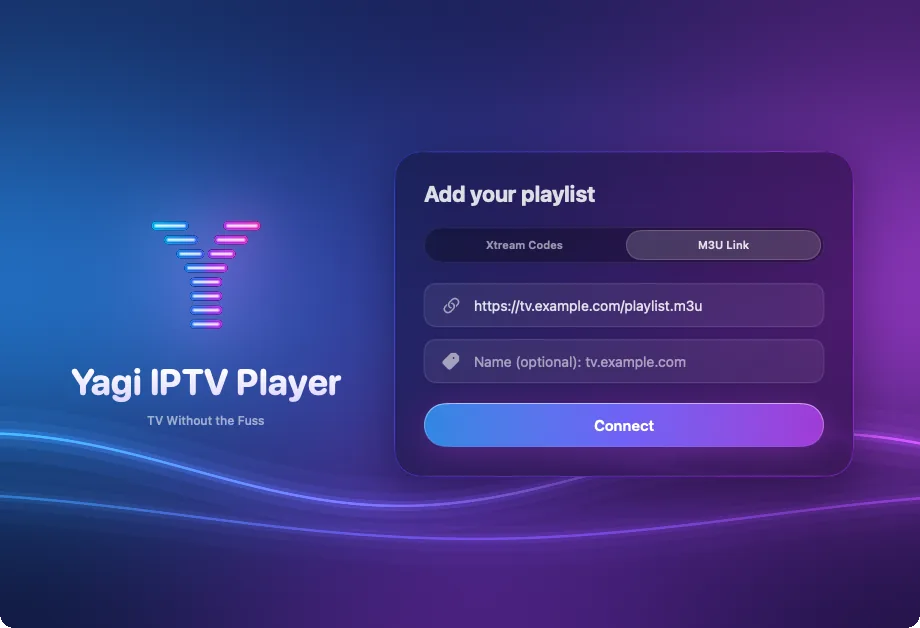
- Choose M3U Link. In the Add your playlist window, click M3U Link.
- Paste the address. Click the link field and press Command-V. Add a name if you like, such as Home.
- Click Connect. Yagi reads the playlist and shows its channels in their groups in the sidebar. Double-click a channel to play it.
If your link has a username and password in it
A link with username= and password= in it usually comes from an Xtream Codes server. Yagi notices when you paste one and offers Use Xtream Codes. Take it: with Xtream Codes you get your provider's movies, series and TV guide as well as the live channels, all from the same login.
More on the difference: Xtream Codes and M3U in Yagi.
Once it's playing
- Press Space to pause live TV, ← and → to skip 10 seconds, ↑ and ↓ to change channel, and L to jump back to live.
- Press S to hide the sidebar and let the picture fill the window.
- Star a channel to keep it in Favorites, and rename or hide groups to tidy a long playlist.
- Yagi checks the link again once a day, so new channels just appear.
