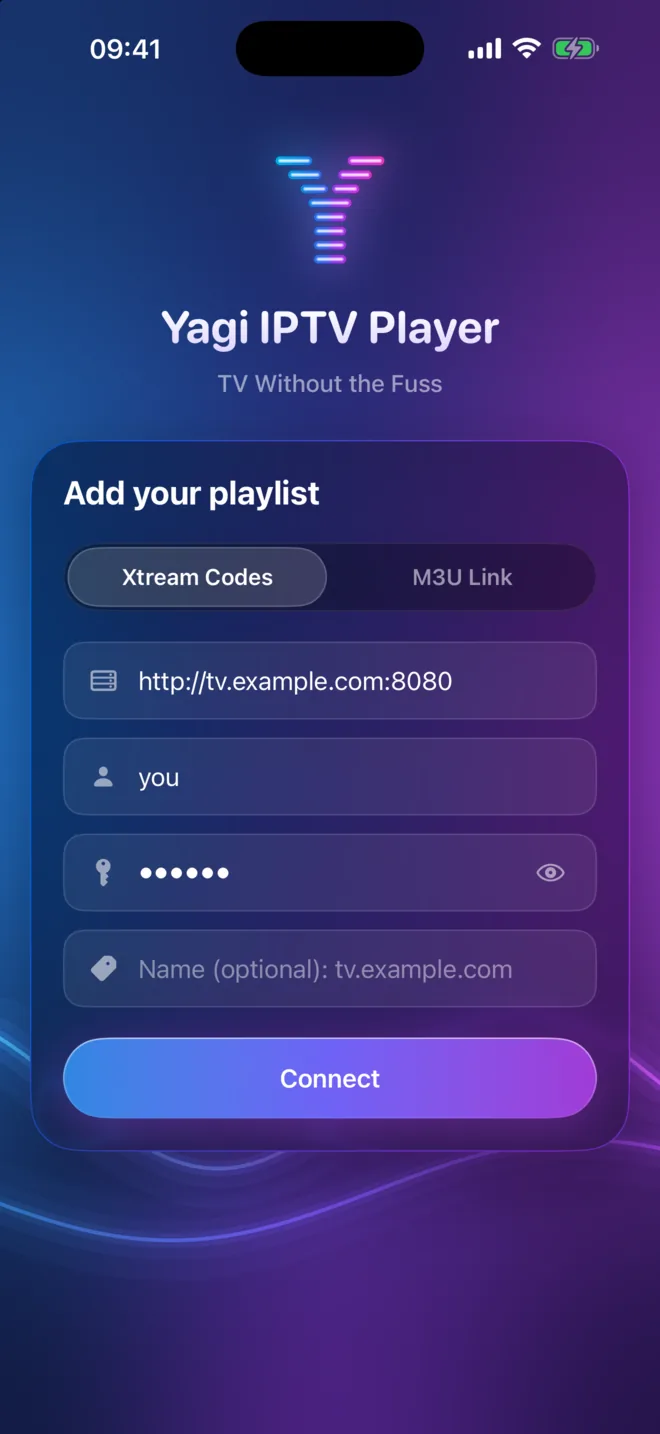
Check these, in order
- The server address. It must start with http:// or https://, exactly as your provider wrote it, including the port after the colon, such as :8080. Leave off anything after it, like /get.php or /player_api.php: the player adds those itself.
- The username and password. They're usually case-sensitive. If you copied them from an email, check that no space came along at the start or the end. In Yagi, tap the eye in the password field to see what you typed.
- Your subscription. A login stops working the day it expires. If you signed in before, Yagi shows your account's expiry date; otherwise check with your provider.
- Your stream limit. Many accounts allow only one or two streams at a time. If the login works but channels won't start, stop playback on your other devices. Yagi says "Stream limit reached" when that's the reason.
- The network. Some Wi-Fi networks, VPNs and ad blockers block IPTV servers. Try once on mobile data, or with the VPN off or on, to see whether the network is the problem.
- The M3U link instead. If your provider sent an M3U link with username= and password= in it, paste it as an M3U link. Yagi recognizes an Xtream Codes login inside it and offers to use it, guide included.
- Your provider. If none of that helps, the server may be down or your account blocked. Your provider is the only one who can check that.
What Yagi's messages mean
- Invalid server URL. Must start with http:// or https://. Add http:// at the start of the server address.
- We couldn't connect to the server after 3 attempts. The server didn't answer, or turned the login down. Check the address, the port and the login details again.
- Stream limit reached. Your account's other streams are in use. Stop playback elsewhere and try again.
- Expired. Your provider's subscription has ended. Renew it with your provider.