Three ways to do it
A native Mac IPTV app
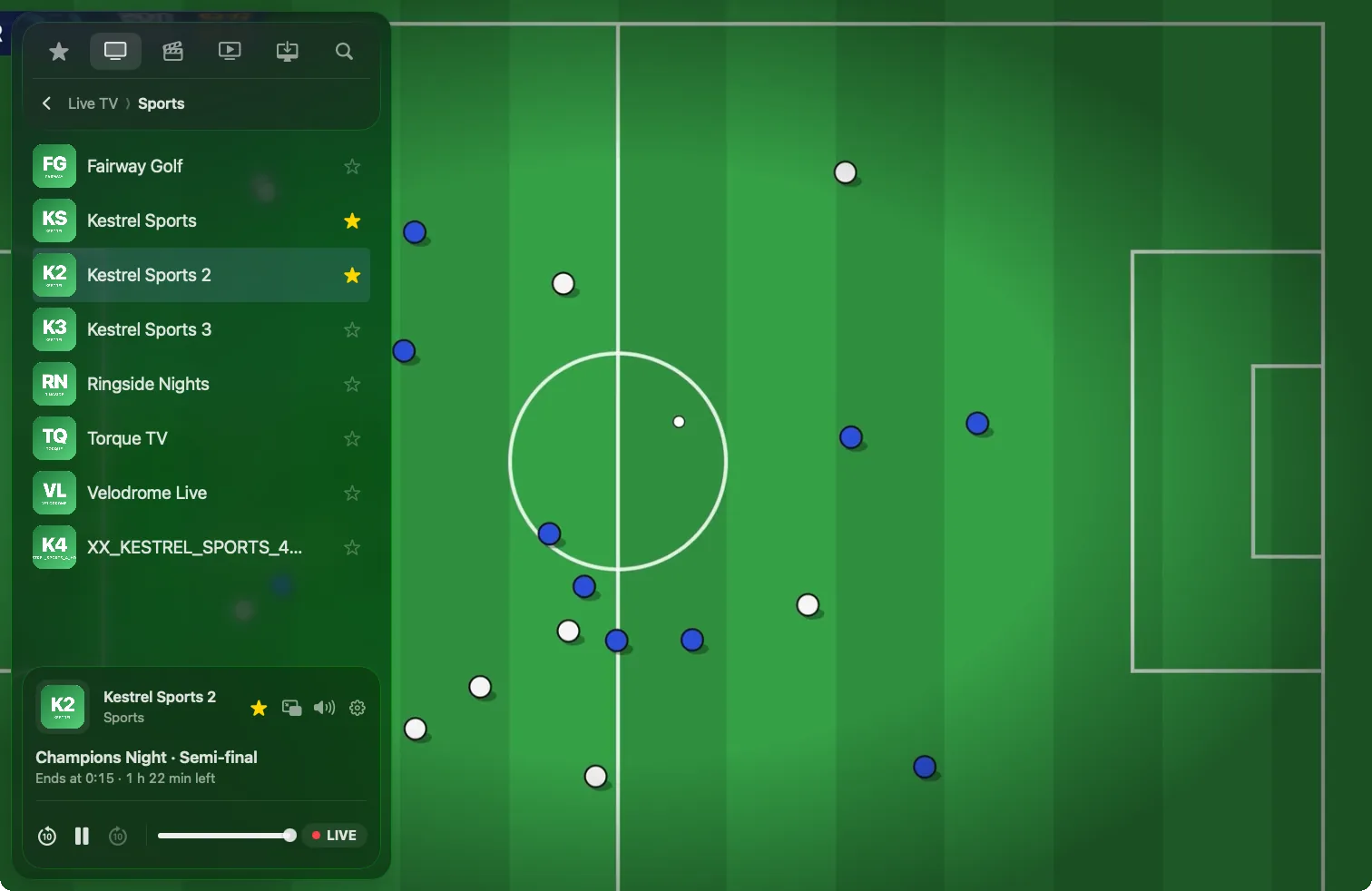
Built for macOS: a resizable window, a channel sidebar, the TV guide, keyboard shortcuts, menu bar commands and Picture in Picture that floats over your other windows. This is the most comfortable way to watch for more than a few minutes. Yagi is one, and GSE Smart IPTV has a separate Mac app too.
An iPad app running on the Mac
Macs with Apple silicon can run many iPhone and iPad apps, and several IPTV players work this way, including IPTVX, UHF and Smarters Player Lite. They play fine, but feel like a tablet app in a window: touch-sized controls and fewer keyboard shortcuts. Our comparison of IPTV players shows which run how.
VLC
The free VLC player opens an M3U link and plays its channels from a list. It's a good way to check that a playlist works. It doesn't do Xtream Codes logins, a TV guide, reminders or sync with your iPhone.
Step by step with Yagi
- Get your login. From your IPTV provider: an Xtream Codes server address, username and password, or an M3U link.
- Install Yagi. Download Yagi IPTV Player from the Mac App Store. It needs macOS 26 or later and is free for 7 days.
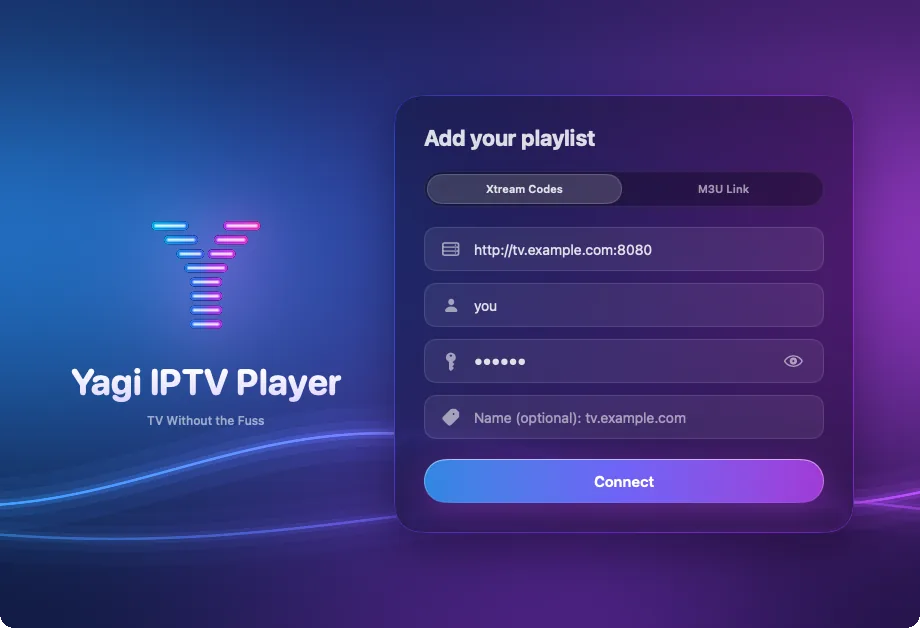
- Add your playlist. Choose Xtream Codes and type the server, username and password, or choose M3U Link and paste the address. Then click Connect.
- Play a channel. Pick Live TV in the sidebar, open a group, and double-click a channel. Press S to hide the sidebar and let the picture fill the window.
- Open the guide. With Xtream Codes, open the playing channel's guide to see what's on next, switch to a programme, or set a reminder.
Make the most of it
- Keyboard. Space pauses, ← and → skip 10 seconds, ↑ and ↓ change channel, L jumps to live, M mutes.
- Picture in Picture. Pop the picture into a small floating window and keep working.
- Two channels at once. Open another window and play a second channel, if your provider's account allows two streams.
- The big screen. AirPlay sends the picture to an Apple TV or an AirPlay TV.
- Your iPhone and iPad. With the same iCloud account, your playlist, favourites and where you stopped are on them too.